scp with sudo – Copying Root-Only Files Between Machines
On most of my servers I don’t log in as root — PermitRootLogin no is set everywhere, and I have a normal account with passwordless sudo instead. That works great until you need to copy a file only root can read, like /etc/shadow, a TLS private key, or anything under /root. Plain scp runs as your user on the remote side and fails with Permission denied. This article shows a small bash function, sscp, that makes scp run as root on the remote machine through sudo — in both directions, and even between two remote hosts — and explains exactly why it works.
The Problem #
$ scp server1:/root/backup.tar.gz .
scp: /root/backup.tar.gz: Permission denied
The usual workarounds are all a bit clumsy:
- copy the file to
/tmpwith sudo,chmodit,scpit, and remember to delete it (and hope nobody else read it in the meantime), - enable root login over SSH just for this,
ssh server1 "sudo cat /root/file" > file— fine for one file, but no directories, no upload, no permissions preserved.
What I actually want is to type scp, just with root on the other side.
The Solution #
Put this into your ~/.bashrc:
sscp() {
  local w="$HOME/.local/bin/sudossh"
  if [[ ! -x $w ]]; then
    mkdir -p "${w%/*}"
    cat >"$w" <<'EOF'
#!/bin/bash
args=("$@"); cmd="${args[-1]}"; unset 'args[-1]'
exec ssh "${args[@]}" "sudo $cmd"
EOF
    chmod +x "$w"
  fi
  scp -O -S "$w" "$@"
}
Then use sscp exactly like scp:
# download a root-only file
sscp server1:/root/backup.tar.gz .

# upload into a root-owned directory
sscp nginx.conf server1:/etc/nginx/nginx.conf

# whole directory, preserving modes and timestamps
sscp -rp server1:/etc/letsencrypt ./letsencrypt-backup

# directly between two servers
sscp server1:/etc/ssl/private/site.key server2:/etc/ssl/private/site.key
The only requirement is that your user has passwordless sudo on the remote machine(s), e.g. in /etc/sudoers.d/<user>:
<user> ALL=(ALL) NOPASSWD:ALL
How scp Actually Talks to the Remote Side #
To understand the trick, you need to know what scp does under the hood. scp doesn’t implement any networking itself. It starts ssh as a child process and runs a command on the remote machine. When using the legacy SCP protocol, that command is another scp in a special server mode:
scp -f /path(“from”) — the remote side sends the file to you (download),scp -t /path(“to”) — the remote side receives the file from you (upload).
The two scp processes then talk a very simple protocol over the SSH connection’s stdin/stdout: a header line like C0600 12 backup.tar.gz, followed by the raw file bytes.
The remote scp -f runs as your user, so it can’t open /root/f. If only that one remote command were sudo scp -f /root/f, everything else would just work. And that’s exactly what the function does.
The -S Option: Replace ssh With Your Own Program #
scp -S program tells scp to use program instead of ssh for the connection. The program receives the same arguments ssh would. I logged what scp actually passes to it (OpenSSH 9.6):
sudossh -x -oPermitLocalCommand=no -oClearAllForwardings=yes -oRemoteCommand=none \
        -oRequestTTY=no -oForwardAgent=no -- server1 'scp -f /root/f'
for a download, and ... -- server1 'scp -t /etc/nginx/nginx.conf' for an upload. The important part: the remote command is always the very last argument, as a single string. Everything before it is ssh options and the hostname (plus -l user, -P port, -i key, -oBatchMode=yes etc. if you pass them to scp).
So the wrapper only has to take the last argument, put sudo in front of it, and hand everything to the real ssh:
#!/bin/bash
args=("$@"); cmd="${args[-1]}"; unset 'args[-1]'
exec ssh "${args[@]}" "sudo $cmd"
Line by line:
args=("$@")— copy all arguments into an array, keeping each one intact (spaces included).cmd="${args[-1]}"— the last element, i.e.scp -f /root/f. Negative indexes need bash 4.3+.unset 'args[-1]'— remove it from the array. The quotes matter: unquoted,args[-1]is a glob pattern and could match a file namedargs-orargs1in the current directory.exec ssh "${args[@]}" "sudo $cmd"— run the real ssh with the original options and host, and the commandsudo scp -f /root/f.execreplaces the wrapper process with ssh, so scp is talking directly to ssh’s stdin/stdout — no extra process in the middle of the data stream.
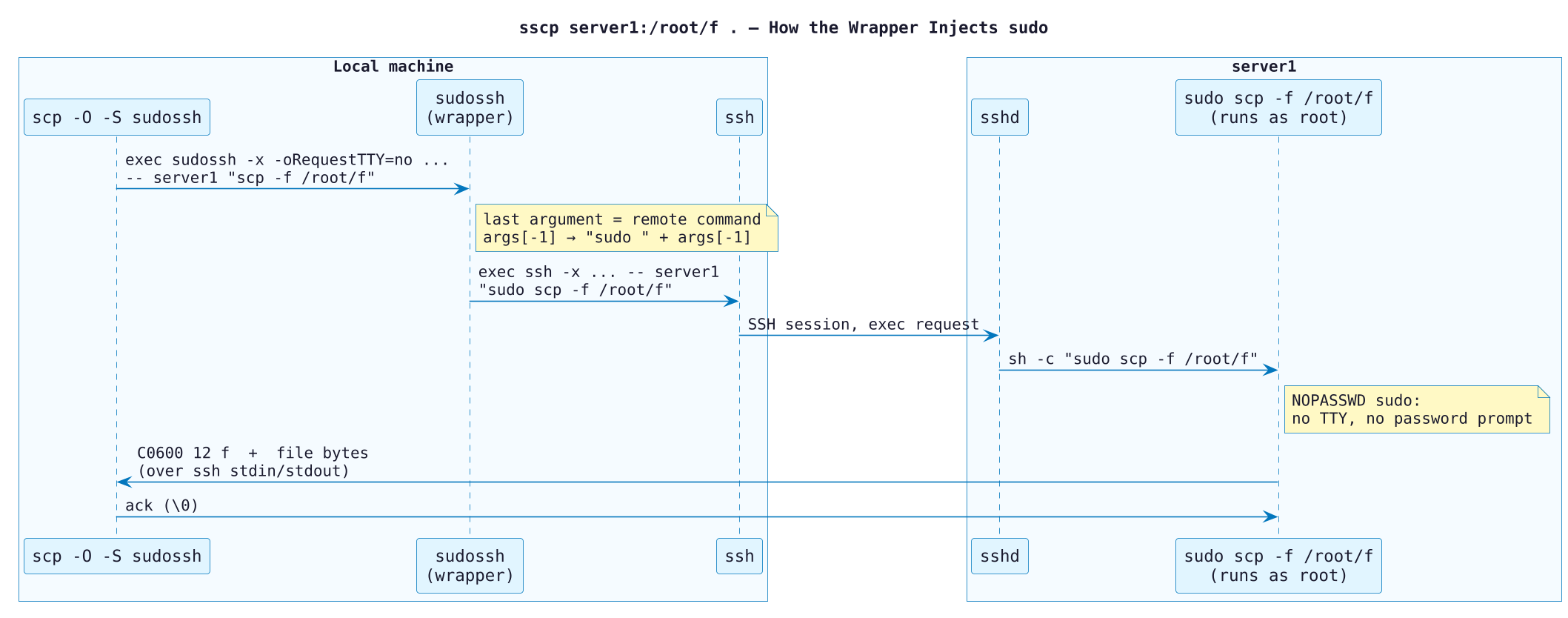
Prefixing works because ssh doesn’t run the command directly — it sends the string to the remote sshd, which runs it through the user’s shell (sh -c "sudo scp -f /root/f"). For the remote shell, sudo scp -f /root/f is just another command line — the remote path is interpreted exactly the same way as with plain scp, just by a process running as root.
Why -O Is Required #
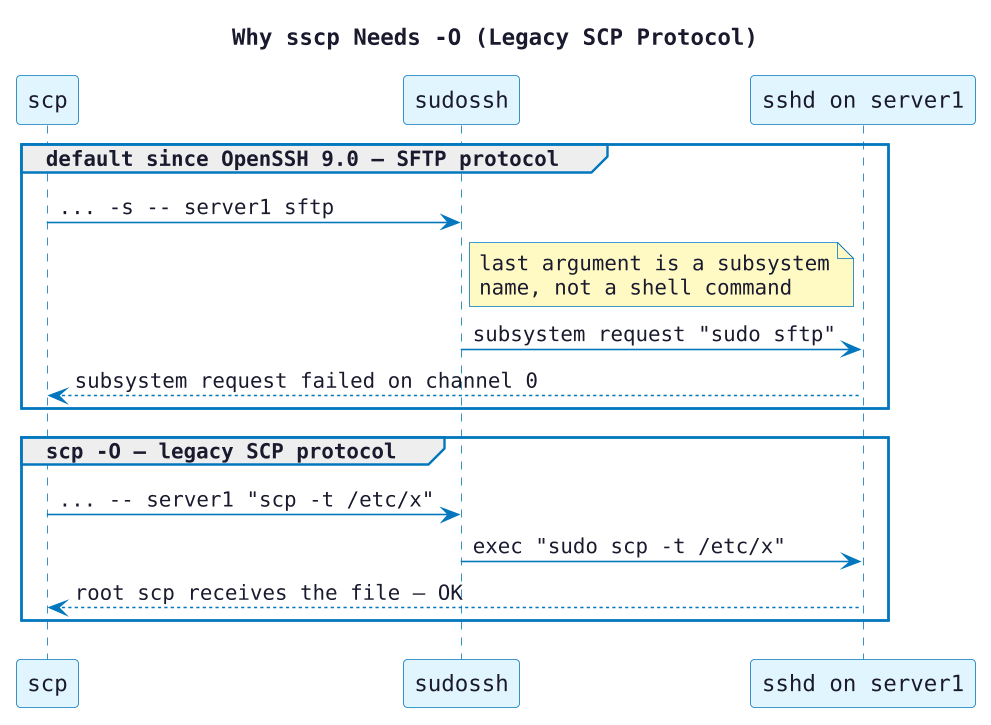
Since OpenSSH 9.0, scp uses the SFTP protocol by default instead of the legacy SCP protocol. In SFTP mode, scp doesn’t run a command — it asks sshd for the sftp subsystem:
sudossh ... -s -- server1 sftp
The last argument is now the subsystem name, not a shell command. The wrapper turns it into sudo sftp, sshd has no subsystem with that name, and you get:
subsystem request failed on channel 0
scp: Connection closed
-O forces the legacy SCP protocol, where the last argument is a real command we can prefix with sudo.
Why It Must Be NOPASSWD #
Look at the options scp passes again: -oRequestTTY=no. There’s no terminal on the remote side, and stdin/stdout are already taken by the file transfer. If sudo asked for a password, it would have nowhere to ask — it would fail with sudo: a terminal is required to read the password, or worse, try to read the password from the data stream. With NOPASSWD, sudo runs scp immediately and the protocol starts as usual.
If you want a clean error instead of any chance of sudo waiting for input, use sudo -n in the wrapper — non-interactive mode, fails right away if a password would be needed.
Copying Between Two Remote Hosts #
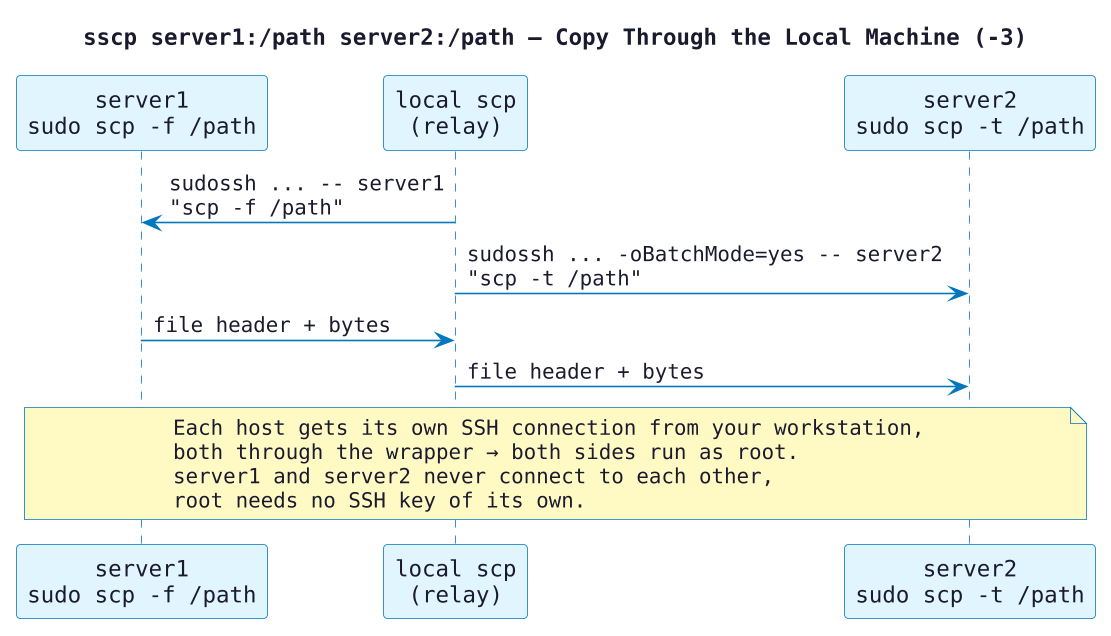
This is where it gets nice. With server1:/path server2:/path, scp (since OpenSSH 9.0) defaults to -3: the data goes through your local machine. scp opens two connections — scp -f on server1 and scp -t on server2 — and pipes one into the other. Both go through the wrapper, so both run under sudo:
From the log:
sudossh ... -- server1 'scp -f /etc/ssl/private/site.key'
sudossh ... -oBatchMode=yes -- server2 'scp -t /etc/ssl/private/site.key'
(scp adds -oBatchMode=yes for the second host because it can’t prompt for two passwords at once — SSH keys are a must here.)
This is exactly what you want: server1 and server2 don’t need to trust each other, root on server1 doesn’t need an SSH key for server2, and the file never lands in a temporary location with loose permissions. The only machine that needs access to both is your workstation, which already has it. Don’t use the old direct mode (no -3) with this wrapper — then server1 itself would run sudo scp ... server2:..., so root on server1 would need its own SSH access to server2.
Why the Function Writes a Script #
scp -S needs a path to an executable file — it calls execvp(), so a bash function or alias can’t be used directly. The function creates the helper the first time it runs:
local w="$HOME/.local/bin/sudossh"— where the helper lives.if [[ ! -x $w ]]— create it only if it doesn’t exist yet (or isn’t executable).mkdir -p "${w%/*}"—${w%/*}strips the shortest/*suffix, i.e. the file name, giving the directory~/.local/bin.cat >"$w" <<'EOF'— the quoted'EOF'means no expansion inside the heredoc.$@,${args[-1]}and$cmdare written literally into the file and are evaluated later when the helper runs, not when the function defines it.chmod +x "$w"— make it executable.scp -O -S "$w" "$@"— run scp with the legacy protocol and our helper, passing through all your arguments.
The result is self-contained: copy the function into ~/.bashrc on any machine and sscp works without installing anything else. If you ever change the helper’s content inside the function, delete ~/.local/bin/sudossh so it gets regenerated.
Things to Keep in Mind #
- Uploaded files are owned by root. That’s usually what you want under
/etc, but if you upload into someone’s home directory, follow up withchown. With-p, modes and timestamps are preserved; ownership isn’t. - Remote
~means root’s home.sscp file server1:~/xlands in/root/x, because the remotescp -truns as root. - It’s root. You can overwrite any file on the target, including
/etc/sudoersor/etc/passwd. Double-check the destination path. - The remote host must still have the
scpbinary. Some minimal images ship only the SFTP server. Ifsscpfails withsudo: scp: command not found, installopenssh-client(Debian/Ubuntu) on the server. - Security-wise nothing new. Anyone with
NOPASSWD:ALLsudo is effectively root already;sscpdoesn’t widen access, it just saves you the/tmpdance.
Alternatives #
The same “replace the remote program with a sudo’d one” idea works elsewhere too:
# rsync: run rsync as root on the remote side
rsync -a --rsync-path="sudo rsync" server1:/etc/letsencrypt/ ./letsencrypt/

# sftp: start the SFTP server under sudo (path differs per distro)
sftp -s "sudo /usr/lib/openssh/sftp-server" server1

# one-off stream with tar, keeps ownership
ssh server1 "sudo tar czf - /etc/letsencrypt" | tar xzf -
For large or repeated transfers, rsync --rsync-path is the better tool. For quick “just get me that file” moments, sscp is what my fingers type.